How to sell a course with a Shopify product
If you want to charge for a course instead of offering it for free, you need to connect it to a Shopify product. When a customer buys that product in your store, they automatically get access to the course.
On this page
Step 1: Set the course access to “Purchase required”#
- In Studyvio, open the course you want to sell.
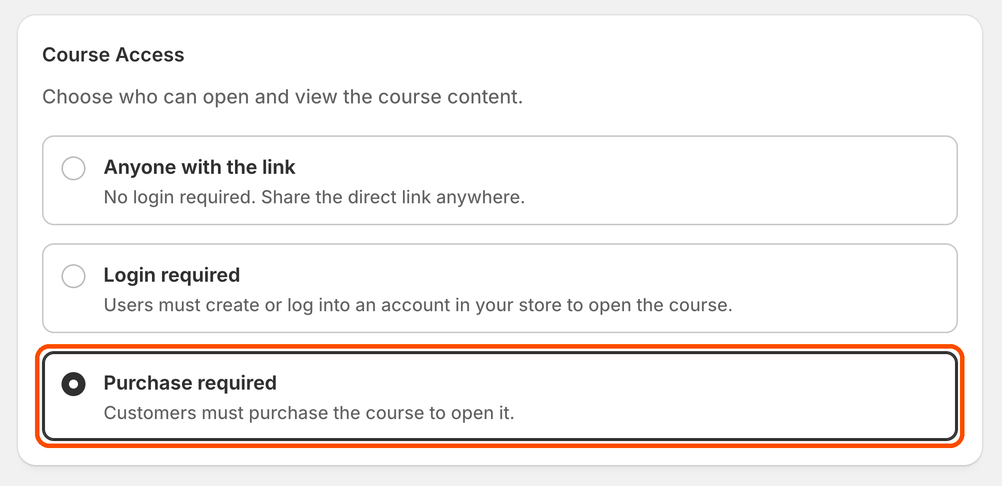
- In the Course Access section, select Purchase required.
With this option, only customers who have purchased the linked product can open the course.
Step 2: Create the product in Shopify#
- In your Shopify admin, go to Products and click Add product. (Tip: open it in a new tab so you can easily switch back to Studyvio.)
- Give the product a clear title, for example “Digital Course: How to Snowboard Like a Pro.”
- Add a short description, a product image, and the price you want to charge.
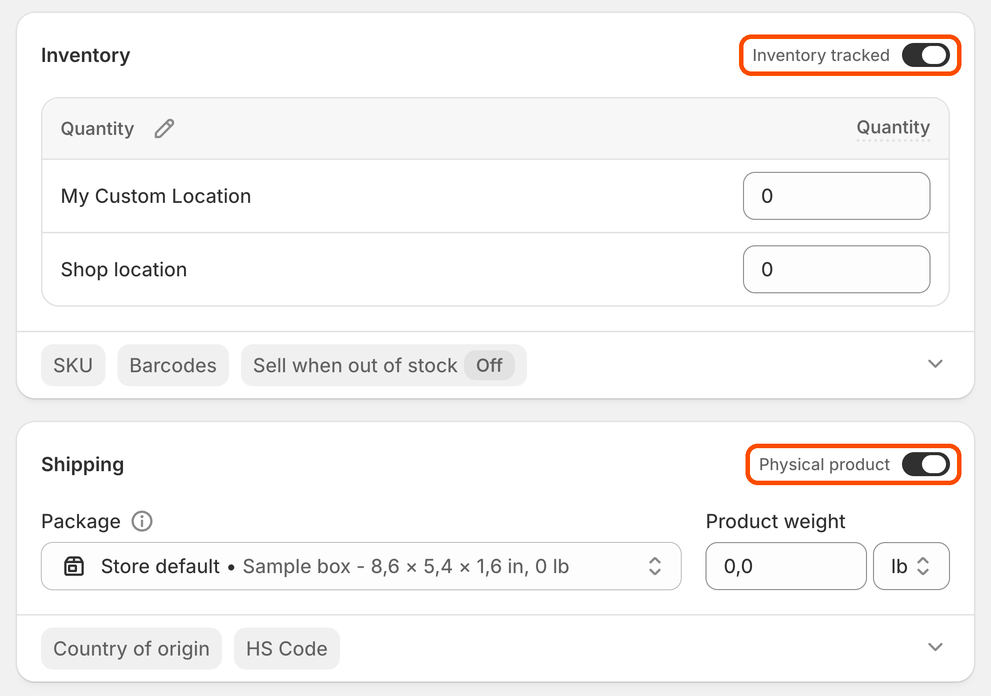
- Under Inventory, turn off Inventory tracked so the product never sells out.
- Under Shipping, turn off Physical product, since your course is a digital item.
- Make sure the product is set to Active and available on your Online Store sales channel, so customers can find and buy it.
- Click Save.
You can also use an existing product instead of creating a new one, as long as it’s set up the same way.
Step 3: Link the product to your course#
- Go back to the course settings in Studyvio.
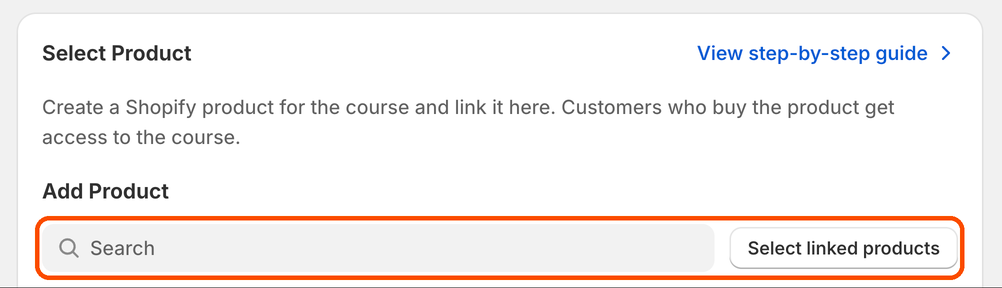
- In the Select Product section, search for the product you just created, or click Select linked products to choose it from a list.
- Save your course.
That’s it!#
From now on, anyone who buys this product in your Shopify store will get access to the course.
Tip: Before promoting your course, place a test order to make sure everything works as expected.